
Read Time:
This guide walks through how to expose a WordPress application running on TrueNAS using Nginx Proxy Manager and a Cloudflare domain. Traffic is routed through Cloudflare DNS to Nginx Proxy Manager, which acts as a reverse proxy and handles SSL certificates using Let’s Encrypt with a Cloudflare API token. This setup keeps internal services isolated while allowing secure access through a public domain.
In my homelab environment I run several services on TrueNAS SCALE, including several WordPress sites and Nginx Proxy Manager. Instead of exposing application ports directly, I route external traffic through a reverse proxy and Cloudflare DNS.
This setup allows me to:
• expose services using clean subdomains
• manage SSL certificates easily
• avoid opening random ports externally
• route multiple services through a single gateway
In this post I’ll walk through how I set up Nginx Proxy Manager on TrueNAS to proxy traffic from a Cloudflare domain to the WordPress application running this website!
Right now if we try to access www.stackandnode.com, we are met with DNS_PROBE_FINISHED_NXDOMAIN
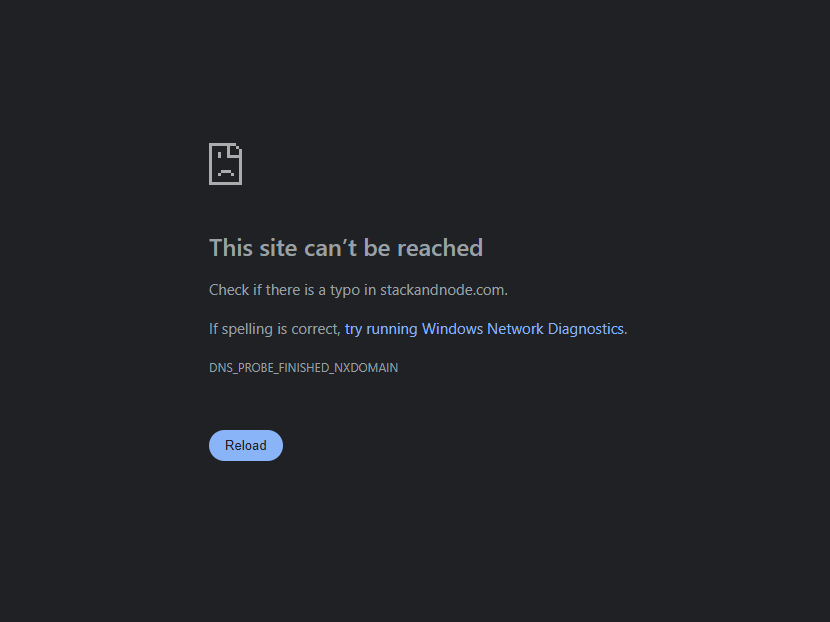
This is because our browser can’t resolve the domain (stackandnode.com) into an actual IP address, that’s the NXDOMAIN (Non-Existent Domain) part. That’s because we haven’t told Cloudflare where to look when someone uses that domain.
This isn’t just applicable to WordPress sites, we can use this same methodology to make all our services and apps available publicly.
Just make sure you secure them 😉
Architecture Overview
The basic flow of traffic looks like this:
---
config:
    theme: base
    securityLevel: loose
    themeVariables:
        darkMode: true
        background: "#0b1220"
        primaryColor: "#111827"
        primaryBorderColor: "#334155"
        primaryTextColor: "#f8fafc"
        textColor: "#e5e7eb"
        lineColor: "#7dd3fc"
        defaultLinkColor: "#7dd3fc"
        edgeLabelBackground: "#0b1220"
        clusterBkg: "#0f172a"
        clusterBorder: "#3b82f6"
        titleColor: "#ffffff"
        nodeTextColor: "#f8fafc"
---
flowchart TD


	n1@{ shape: "rounded", label: "External Traffic", img: https://icons.veryicon.com/png/o/miscellaneous/base-icon-library-1/internet-54.png, h: 48, constraint: on}
	style n1 stroke-width:0px
    n2@{ shape: "rounded", label: "Cloudflare DNS", img: https://cdn.iconscout.com/icon/free/png-256/free-cloudflare-logo-icon-svg-download-png-3029911.png?f=webp, h: 48, constraint: on }
    style n3 stroke-width:0px
    n3@{ shape: "rounded", label: "NginX Proxy Manager (NPM)", h: "48", img: "https://nginxproxymanager.com/icon.png", constraint: "on" }
	style n3 stroke-width:0px
	n4@{label: "Wordpress", img: https://growyourmindshare.com/wp-content/uploads/2013/04/Wordpress_Blue_logo.png, h: 48, constraint: on}
    style n4 stroke-width:0px

    n1--> |"stackandnode.com"| n2--> |"Public IP"|n3-->|"TureNAS_IP:Container_Port"|n4
Cloudflare handles DNS and optional proxying, while Nginx Proxy Manager handles the reverse proxy and SSL termination. The WordPress application runs internally on TrueNAS and does not need to be exposed directly to the internet.
Step 1: Verify the App is Running Internally
Before configuring the reverse proxy, the WordPress application (or whatever you are proxying) must already be accessible internally on the TrueNAS network.
For example, if the WordPress app is running on port 30040, verify it loads locally from another machine on the same network.
In this example my local IP for TrueNAS is 192.168.3.216 and this WordPress application has it’s port set to 30044.
So to connect locally I would put this in my browser:
http://192.168.3.216:30044
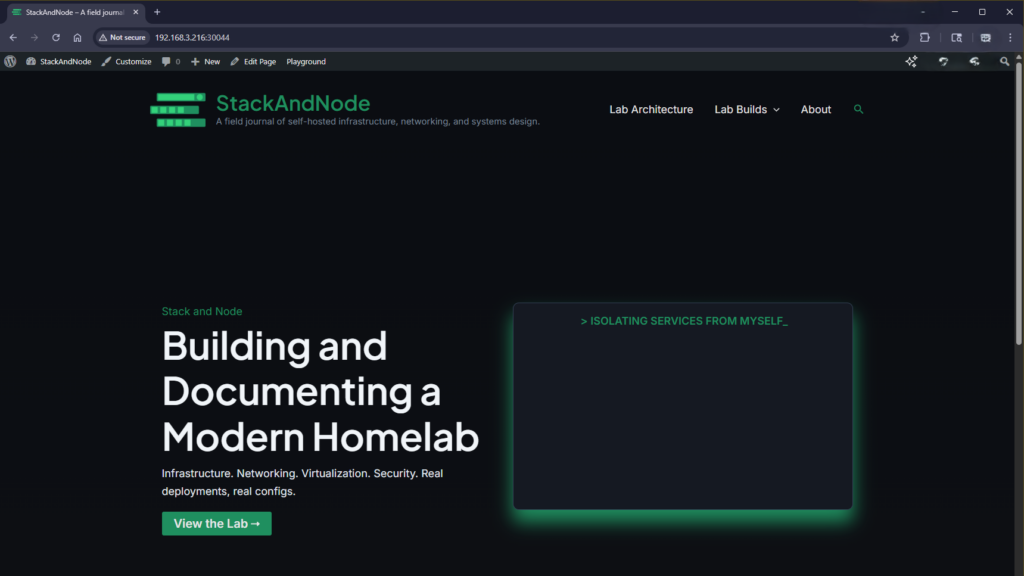
If the application is not reachable internally, the reverse proxy will not be able to forward requests to it.
Step 2: Configure Cloudflare DNS
If you aren’t familiar with Cloudflare, I recommend checking out their article So what is Cloudflare? Explaining what Cloudflare is/does is beyond the scope of this post.
Next, we are going to create a DNS record in Cloudflare that points our domain to the public IP of our router.
First we are going to log in to Cloudflare dashboard and select our domain.
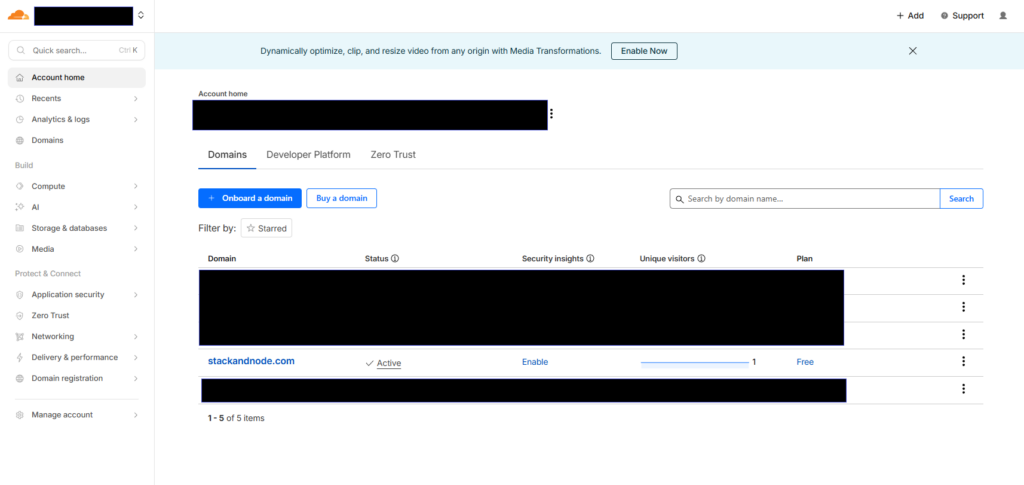
Now on the left panel, we are going to select DNS and Records from that dropwdown.
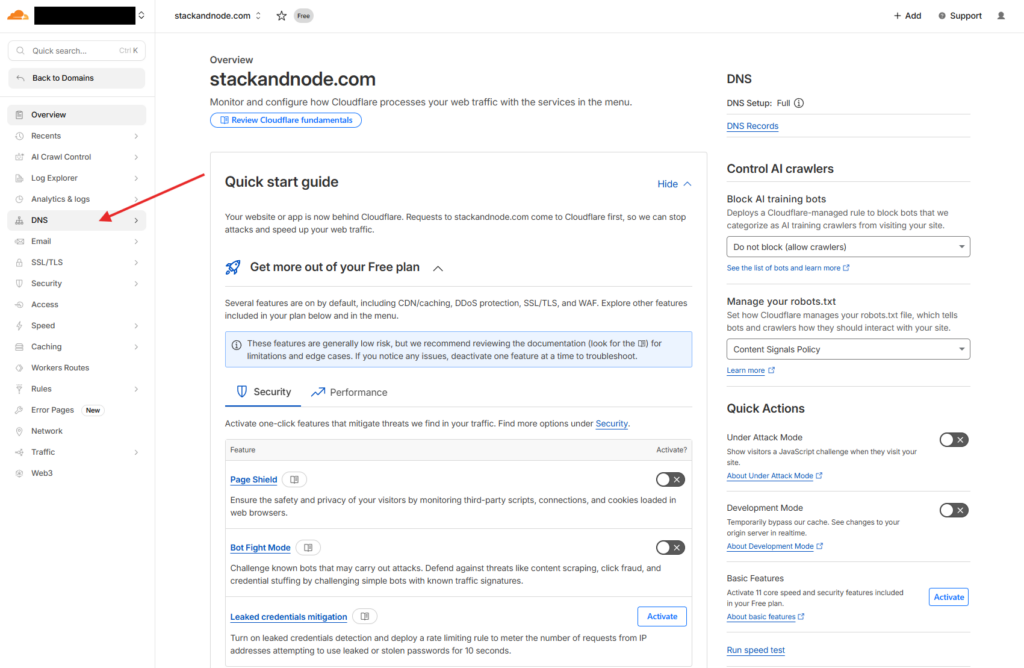
Now that we are in the DNS records page, lets add our first one.
Cloudflare is actually giving us some hints about a few of the records we are going to create.

So to start, select the blue Add record button.
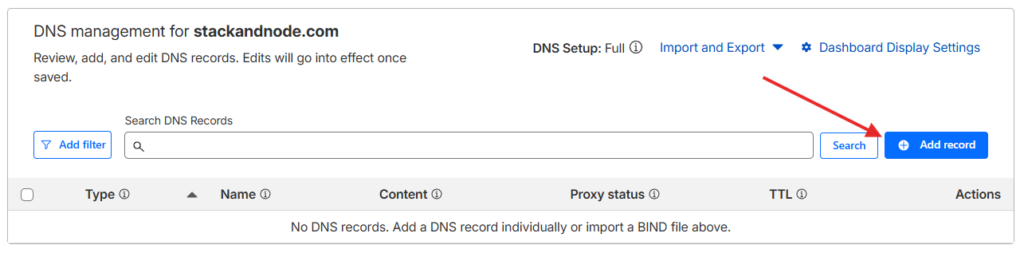
The first rule we are going to make uses:
Type:CNAME
Name:www
Target:@or you can fully type out the domain (i.estackandnode.com)
Proxied: Make sure this is checked, this is important.
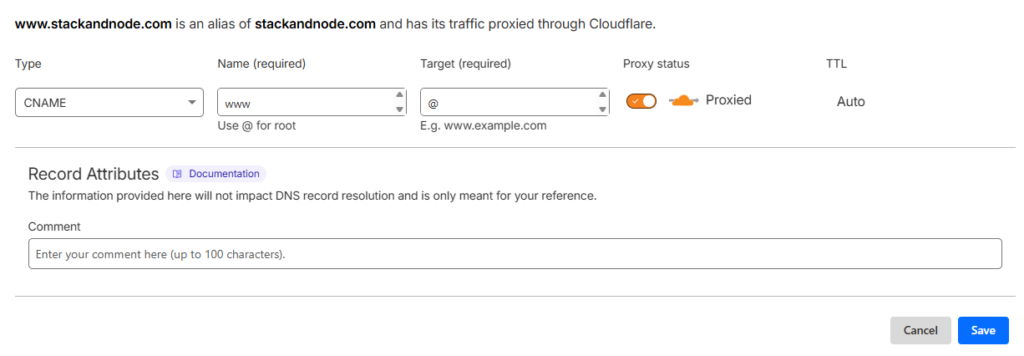
Click Save.
The second rule we are going to make uses these rules:
Type:A
Name:@
Target:YourPublicIP(You can find your public IP on your router or via this Link)
Proxied: Again yes
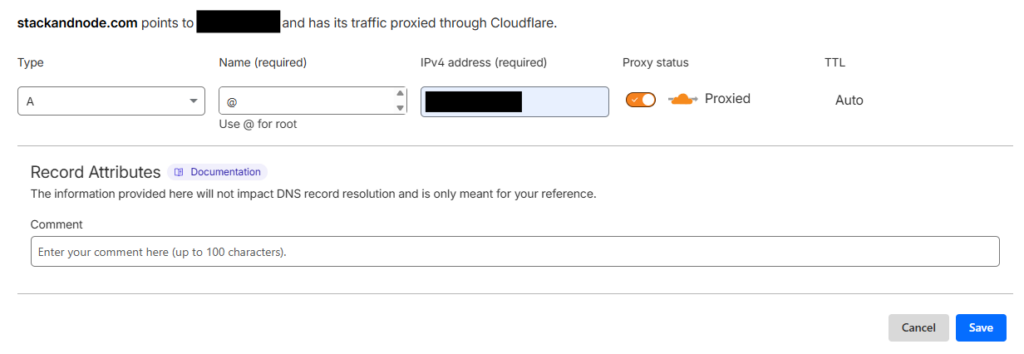
You should now have 2 records and they should look something like this.
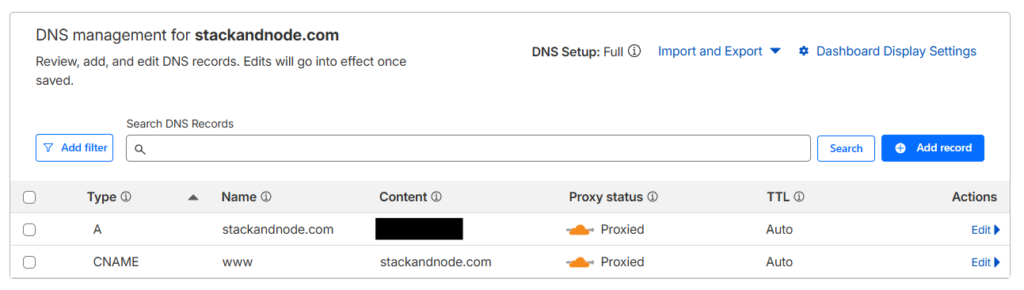
We wont be getting into subdomains here but if you are interested in learning about them here is the wiki page that explains them pretty good.
Step 3: Ensure Ports Are Reachable
Nginx Proxy Manager requires inbound access to the standard HTTP and HTTPS ports.
Make sure the following ports are forwarded from your router to the TrueNAS server running Nginx Proxy Manager:
Port 80 (HTTP)
Port 443 (HTTPS)
Without these ports open, the reverse proxy and automatic SSL certificates will not work correctly. Most router’s have a different UI so we wont be guiding you exactly on how to do this, but a simple google search of “YourRouter + Port Forward” should provide you with enough information to accomplish this.
Step 4: Create a Proxy Host in Nginx Proxy Manager
After confirming the ports are forwarded, the next step is to configure a Proxy Host in Nginx Proxy Manager. This tells the reverse proxy how to route incoming traffic from your domain to the internal application running on TrueNAS.
Log into the Nginx Proxy Manager dashboard and select Proxy Hosts from the dashboard, alternatively in the top bar you can select Hosts then Proxy Hosts.

From the Proxy Hosts page we are going to select Add Proxy Host in the top right.

We are going to configure our proxy like this.
Domain Names: *.stackandnode.com
Scheme: http
Forward Hostname/IP: 192.168.3.216
Forward Port: 30044
Access List: Publicly Accessible
Options:
    Cache Assets: OFF
    Block Common Exploits: ON
    Websockets Support: ON

So why are these the options we are choosing?
This is the public domain or subdomain that users will visit. When someone opens stackandnode.com, Nginx Proxy Manager will intercept that request and route it to the correct internal service.
Using subdomains makes it easy to host multiple services from the same server while keeping them separated.
In our example you may notice we are using a * in front of our domain instead of the typical www. this “Asterisk” is known as a wildcard, allowing any subdomain to utilize this reverse proxy. If you only wanted to www traffic to route through this proxy then you would use www, but for this purpose I’ll just use the wildcard.
The scheme defines how Nginx communicates with the backend service.
Options typically include: HTTP and HTTPS
In this case we use HTTP because the WordPress container is only accessible internally on the TrueNAS network. Encryption is handled at the proxy layer instead of the application itself.
This simplifies configuration and avoids needing certificates inside every container.
This tells Nginx Proxy Manager where the application is running internally.
Examples include:
TrueNAS server IP
Docker container hostname
internal service hostname
In a TrueNAS setup this is usually the internal IP address of the server hosting the application. which in our case is 192.168.3.216
This is the port where the backend application is listening.
For example:
WordPress container → port 8080
Node app → port 3000
Nextcloud → port 11000
Nginx Proxy Manager will forward traffic from the public domain to this internal port.
Block Common Exploits
This enables built in Nginx rules that block common malicious request patterns. These protections help prevent some basic web attacks such as path traversal or malformed requests.
Since this feature has minimal performance impact, it is generally recommended to leave it enabled.
Websockets Support
Websockets allow persistent connections between the browser and server for real time communications.
Applications that rely on websockets include:
live dashboards
real time chat
collaborative editing tools
some WordPress plugins
Enabling websocket support ensures Nginx correctly forwards these upgrade requests to the backend service.
Even if the current application does not use websockets, enabling it usually does not cause issues.
How the Reverse Proxy Handles the Request
How the Reverse Proxy Handles the Request
After the proxy host is created, Nginx Proxy Manager automatically generates the Nginx configuration needed to route traffic.
The request flow looks like this:
- A user visits
blog.yourdomain.com - Cloudflare resolves the DNS record and directs traffic to the server
- Nginx Proxy Manager receives the request
- The proxy host configuration matches the domain
- The request is forwarded to the internal WordPress application on port
8080 - The response is returned to the user through the proxy
This allows the internal application to remain isolated while still being reachable through a secure public domain.
At this point the proxy routing is complete, but the connection is still using HTTP. The next step is enabling SSL so traffic is encrypted between the browser and the reverse proxy.
Step 5: Enable SSL
Once the proxy host is created, we are going to switch to the SSL tab and request a new certificate.
For this we are going to use the following settings:
SSL Certificate: Request a new Certificate with (Let's Encrypt)
Force SSL: ON
HTTP/2 Support: ON
HSTS Enabled: ON
Use DNS Challenge: ON
DNS Provider: Cloudflare

Some DNS Providers require you to prove ownership of a domain when proxying, in NPM that means we need to use Certbot DNS plugin for our specific provider by turning on the DNS Challenge slider and selecting our provider (in this case Cloudflare), after which we must go back into Cloudflare and get an API token. If this doesn’t apply to your scenario, you can leave DNS Challenge off and skip past the token steps.
Steps for obtaining API token using Cloudflare
- Log into your cloudflare dashboard
- Navigate to
Profile(top right) - Select
API Tokens(Left menu) - Select
Create Token - Select
Get Startedon the “Custom Token” tab - Give it a name (whatever you want)
- Add 2
Permissions- Zone -> DNS -> Edit
- Zone -> Zone -> Read
- Add the zone under
Zone Resources- Include -> Specific Zone -> yourdomain.com
- You could in theory apply to this token to all zones in your account if you manage multiple domains through Cloudflare and wish to use the same token for all DNS challenges across those domains, however from a security perspective this is suboptimal and the SSL equivalent of “putting all your eggs in one basket” if somehow that token is compromised, all your domains could be affected.
- Include -> Specific Zone -> yourdomain.com
- Optionals
- Client IP Address Filtering
- You could filter the use of this token by certain IP’s (i.e the public IP your homelab lives) but should for any reason that IP changes, that’s another step you need to re-do. Secure your token!
- TTL (Time-to-Live)
- You can decide how long this token will be active, in an enterprise production environment this may matter, but for most homelabbers having a never expiring token is jsut fine.
- Client IP Address Filtering
- Select
Continue to Summary - Ensure the summary looks correct.
- Under your account, it should read something like “yourdomain.com – DSN:Edit, Zone:Read“
- If it’s right, select
Create Token - You should now see your fresh token, copy and put it in the
Credentials File Contentin NPM.- Best practice is to now store this token as plaintext anywhere, follow that if you feel necessary.
- There is also a test command you can use to verify the token is working
Lets quicly go over the options we chose and what they mean.
This dropdown selects which certificate Nginx Proxy Manager should use for the proxy host.
If this is the first time configuring SSL for the domain, you will select:Request a new SSL Certificate
Once the certificate has been created, it will appear in this list and can be reused for other hosts or subdomains.
Certificates are automatically renewed by Let’s Encrypt before they expire.
If you wish to learn more about what an SSL Certificate is, Cloudflare has a great article that covers it.
When this option is enabled, all HTTP traffic is automatically redirected to HTTPS.
For example:
http://blog.yourdomain.com
will automatically redirect to
https://blog.yourdomain.com
This ensures that all connections are encrypted and prevents users from accessing the insecure HTTP version of the site.
This option is generally recommended for most public facing services.
HTTP/2 is a modern web protocol that improves performance by allowing multiple requests to be sent over a single connection.
Benefits of HTTP/2 include:
• faster page loading
• better resource multiplexing
• reduced latency
• improved performance for sites with many assets
Most modern browsers support HTTP/2, so enabling this option typically improves performance without any downside.
HSTS stands for HTTP Strict Transport Security.
When enabled, Nginx instructs browsers to only access the site using HTTPS for a defined period of time.
This prevents users from accidentally connecting over HTTP and protects against certain downgrade attacks.
Once a browser receives an HSTS policy, it will automatically enforce HTTPS for future visits
While this improves security, it should only be enabled once HTTPS is confirmed to be working correctly.
This option extends the HSTS policy to all subdomains of the current domain.
For example, enabling this on:
blog.yourdomain.com
would enforce HTTPS for:
*.yourdomain.com
This option is typically used when all services under the domain are served over HTTPS.
If some subdomains still rely on HTTP, this option should remain disabled.
This option changes the certificate validation method used by Let’s Encrypt.
Instead of validating the domain through an HTTP request, the DNS challenge works by creating a temporary TXT record in your DNS provider.
In this setup we select DNS Challenge → Cloudflare because:
• Cloudflare manages the domain DNS
• Cloudflare proxying may block HTTP validation
• DNS validation works even if ports are restricted
• wildcard certificates can be issued using DNS validation
Nginx Proxy Manager uses the Cloudflare API token to automatically create and remove the validation records.
Common Issues and Troubleshooting
While the overall setup is fairly straightforward, there are a few common issues that can prevent the reverse proxy or SSL configuration from working correctly. Most problems usually come down to DNS configuration, networking, or incorrect proxy settings.
Below are some of the most common problems I encountered when configuring Cloudflare, Nginx Proxy Manager, and an application on TrueNAS.
Certificate Fails to Generate
If the SSL certificate fails to generate, the most common cause is an issue with the Cloudflare API token or DNS configuration.
Things to check:
• Verify the Cloudflare API token permissions include:
Zone → DNS → Edit
Zone → Zone → Read
• Confirm the token is limited to the correct zone
• Ensure the correct DNS provider (Cloudflare) is selected in the DNS Challenge
• Verify the domain in Nginx Proxy Manager exactly matches the DNS record
You can also check the Nginx Proxy Manager logs to see detailed errors related to certificate issuance.
Bad Gateway Error
A 502 Bad Gateway error typically means Nginx Proxy Manager cannot reach the backend application.
This usually indicates a problem with the internal address or port.
Things to check:
• Verify the Forward Hostname / IP is correct
• Confirm the Forward Port matches the application port
• Test the service directly from your network:
http://truenas-ip:8080
• Ensure the application container is running inside TrueNAS
If the application cannot be reached directly on the internal network, the reverse proxy will not be able to forward requests.
SSL Redirect Loop
Redirect loops often occur when both Cloudflare and the reverse proxy are trying to enforce HTTPS at the same time.
To avoid this issue, verify the following Cloudflare setting.
Cloudflare SSL Mode:
Full or Full (Strict)
Avoid using Flexible SSL, as it can cause infinite redirect loops when the reverse proxy is already handling HTTPS.
DNS Changes Not Working
DNS changes can take time to propagate depending on your DNS TTL settings.
If the domain is not resolving correctly:
• Confirm the DNS record exists in Cloudflare
• Verify the public IP address is correct
• Clear your local DNS cache
• Test DNS resolution using tools like:
nslookup blog.yourdomain.com
Conclusion
Running services behind a reverse proxy is one of the best ways to manage applications in a homelab environment. By combining Cloudflare DNS, Nginx Proxy Manager, and TrueNAS applications, it becomes much easier to securely expose internal services to the internet without directly opening application ports.
In this setup, Cloudflare handles DNS resolution while Nginx Proxy Manager manages the reverse proxy routing and SSL certificates. The WordPress application itself remains isolated within the TrueNAS environment, accessible only through the proxy layer.
This architecture provides several benefits:
• Centralized traffic routing for multiple services
• Automatic SSL certificate management
• Cleaner domain based access to applications
• Reduced attack surface by avoiding direct port exposure
Once the reverse proxy is configured, adding additional services becomes much simpler. Each new application only requires a DNS record and a new proxy host configuration rather than additional firewall rules or manual certificate management.
For anyone building a TrueNAS based homelab, using Nginx Proxy Manager with Cloudflare is a reliable and scalable way to manage external access to internal services.
Expanding the Setup
Once Nginx Proxy Manager and Cloudflare are working together, it becomes much easier to expand your homelab and expose additional services securely. One of the biggest advantages of using a reverse proxy is that new services can be added without changing firewall rules or exposing additional ports.
Instead, each new application simply requires a DNS record and a new proxy host configuration.
Some common services that work well behind this type of setup include:
• Nextcloud for private cloud storage
• Jellyfin or Plex for media streaming
• Grafana for monitoring dashboards
• Portainer for container management
• additional WordPress sites or development environments
Each service can be mapped to its own subdomain, allowing them to remain organized and easy to access.
For example:
cloud.yourdomain.com
media.yourdomain.com
monitor.yourdomain.com
Nginx Proxy Manager routes each of these domains to the appropriate internal service while handling SSL certificates automatically.
Using Wildcard Certificates
If you plan to host many services under the same domain, you may want to consider using a wildcard certificate.
A wildcard certificate allows one certificate to cover all subdomains.
Example:
*.yourdomain.com
Since the setup already uses the Cloudflare DNS challenge, wildcard certificates can be generated easily using the same API token method described earlier.
This can simplify certificate management when running multiple services.
Cloudflare Security Features
Cloudflare provides several security features that can help protect self hosted services from common threats.
Some useful options include:
• Web Application Firewall (WAF) rules
• bot protection
• rate limiting
• geo blocking
• automatic DDoS protection
These features can add an additional layer of protection before traffic even reaches your reverse proxy.
Protecting Administrative Interfaces
Some services expose administrative dashboards that should not be publicly accessible.
Examples include:
• TrueNAS management interface
• container dashboards
• database administration panels
Instead of exposing these services directly, consider placing them behind additional authentication layers such as:
• Cloudflare Access
• VPN access
• IP allow lists
• authentication middleware
This helps reduce the attack surface of your homelab.
Using Cloudflare Tunnels
Another option for exposing internal services is Cloudflare Tunnel.
Cloudflare Tunnel creates an outbound connection from your server to Cloudflare, allowing services to be exposed without opening ports on your router.
This can be useful in environments where port forwarding is restricted or when additional security isolation is desired.
However, for many homelab setups, using a reverse proxy with standard HTTPS ports remains the simplest and most flexible approach.